

Challenge Awards Setup
Overview
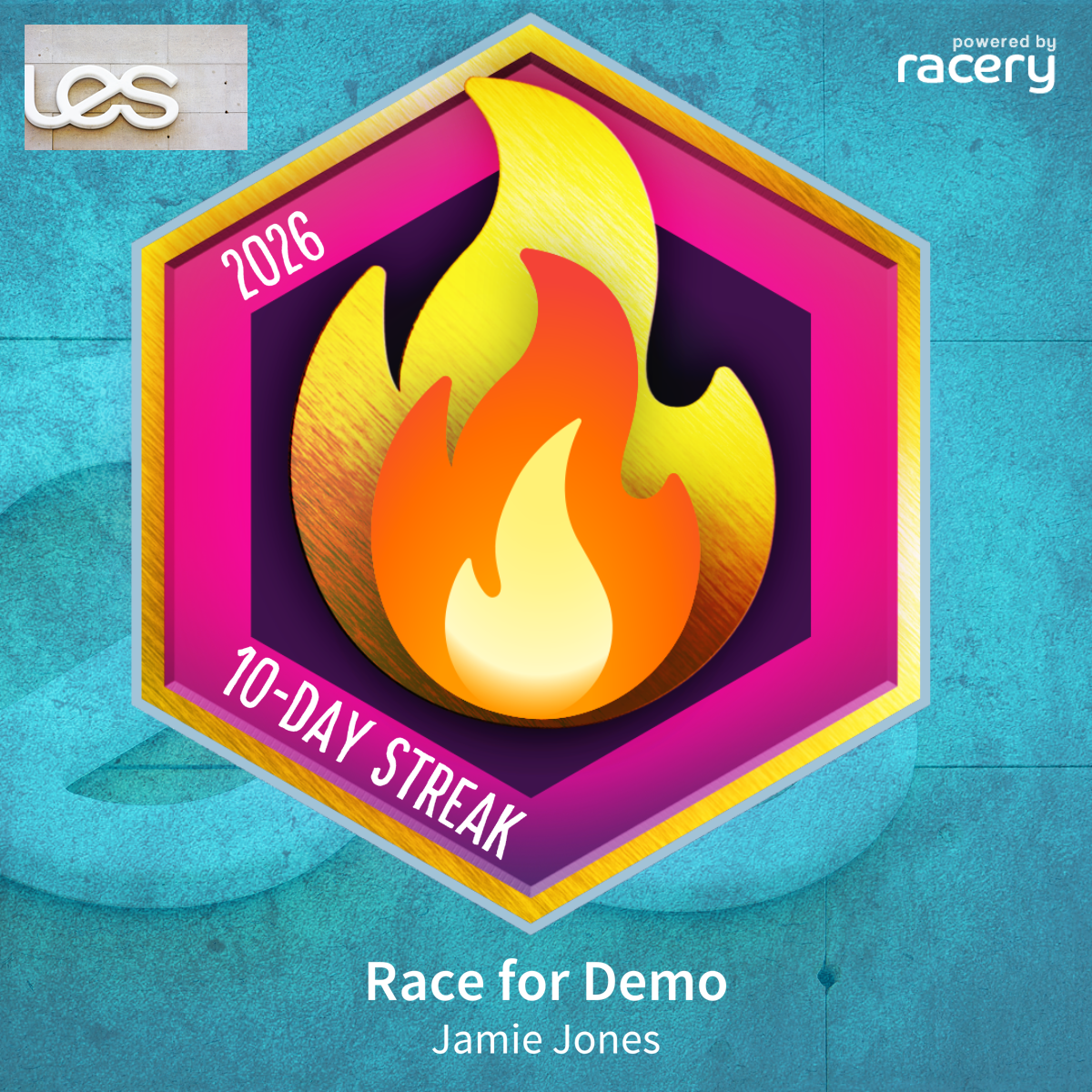
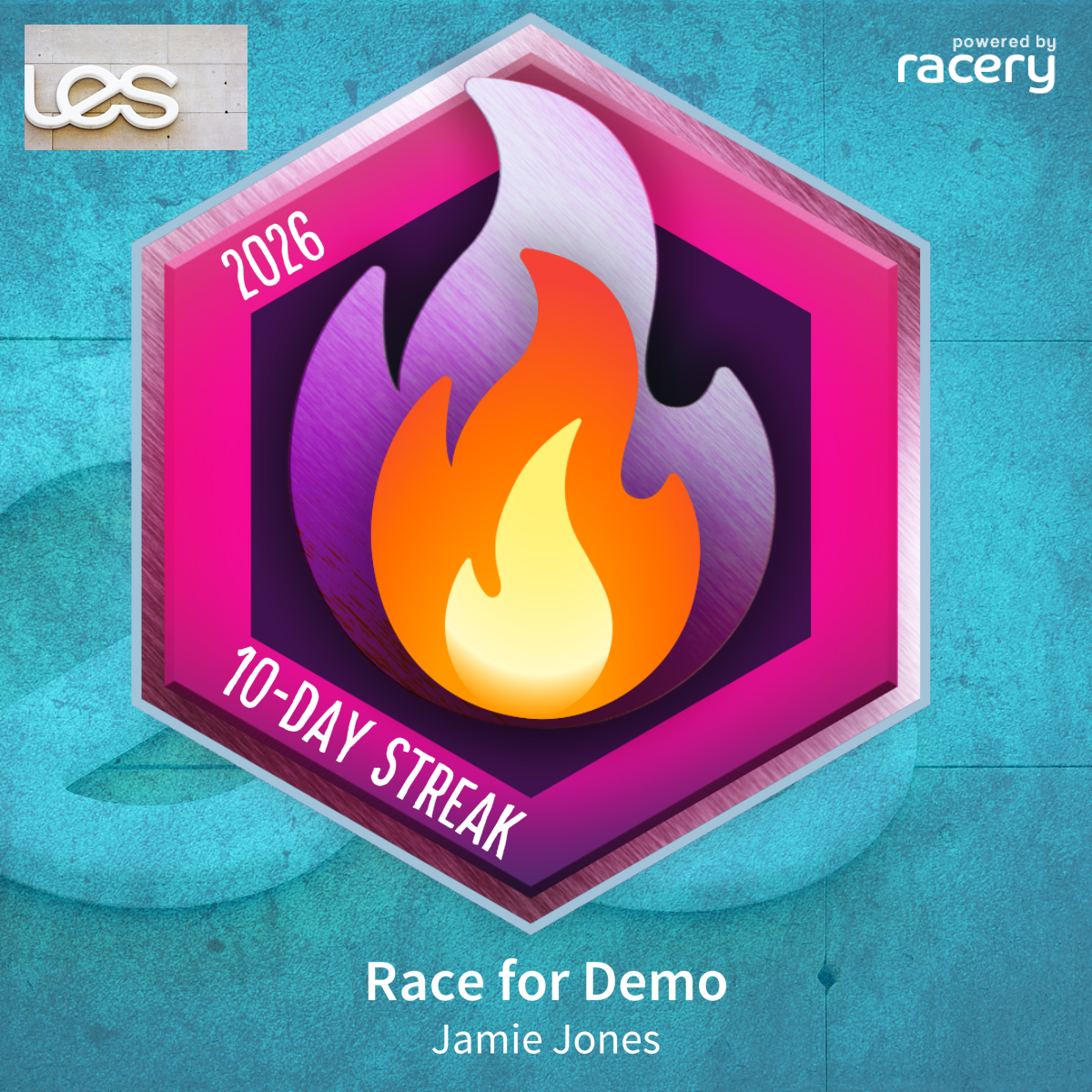
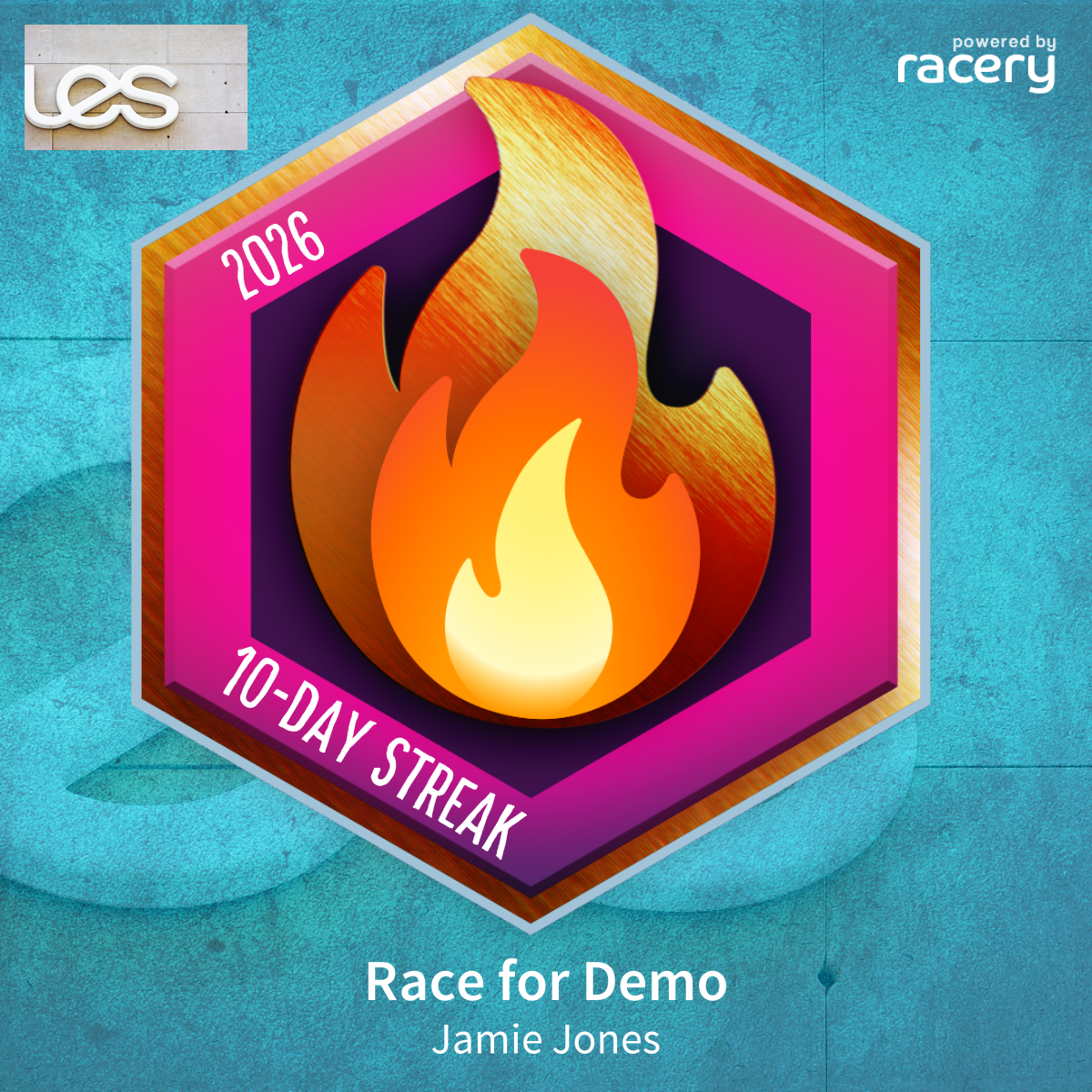
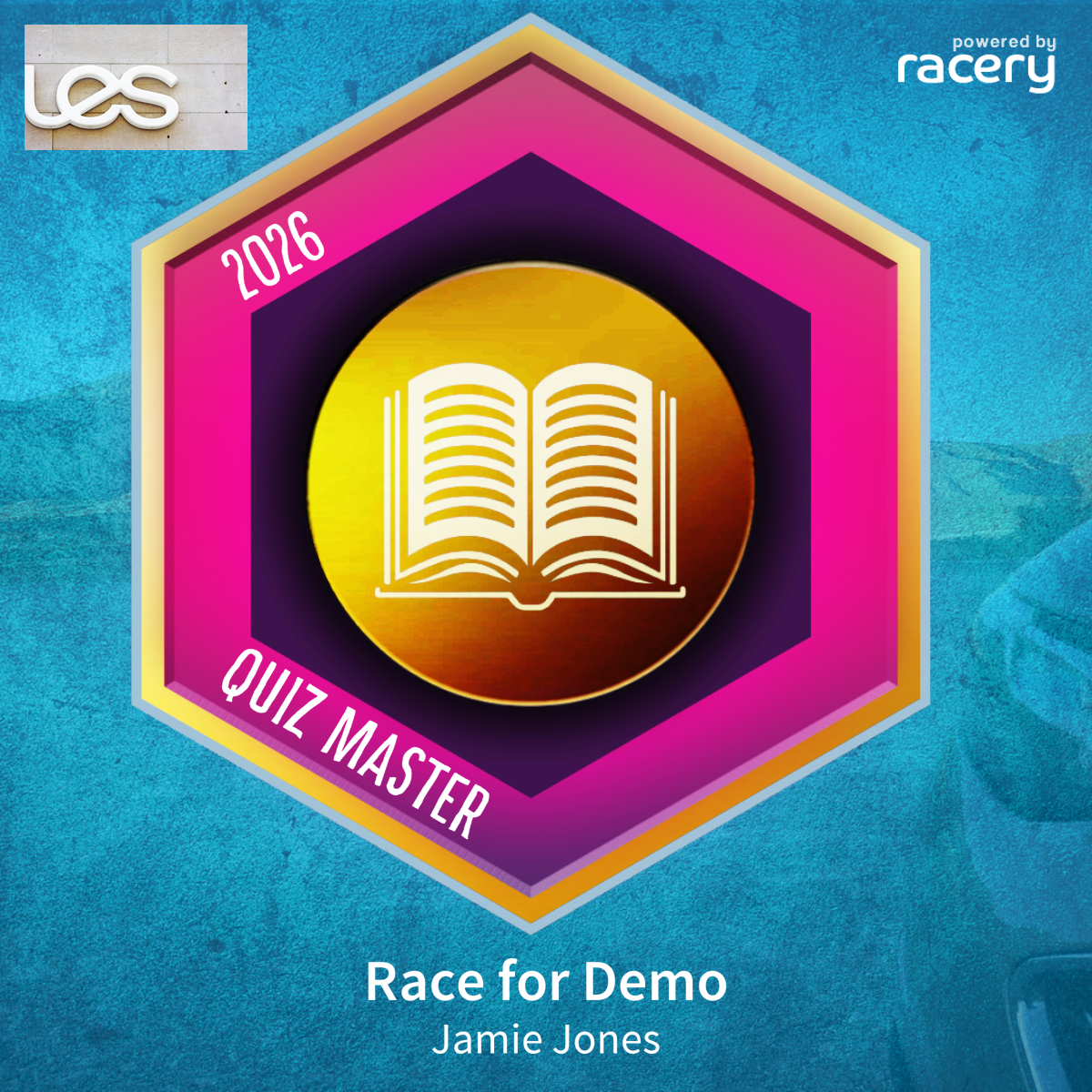
Challenge awards are badges earned by racers during virtual races. Four variants exist: gold, silver, bronze, and quiz.
Gold, silver, and bronze are streak-based — earned by logging activity on N consecutive days. Quiz is earned by completing a linked Quizlab quiz.
Award Types & Variants
| Variant | Trigger | Badge Text | Template Image |
|---|---|---|---|
| Gold | Streak (N days) | {N}-DAY STREAK |
Racery-ChallengeAward-gold.png |
| Silver | Streak (N days) | {N}-DAY STREAK |
Racery-ChallengeAward-silver.png |
| Bronze | Streak (N days) | {N}-DAY STREAK |
Racery-ChallengeAward-bronze.png |
| Quiz | Quiz completion | QUIZ MASTER |
Racery-ChallengeAward-quiz.png |
Setting Up a Streak Award
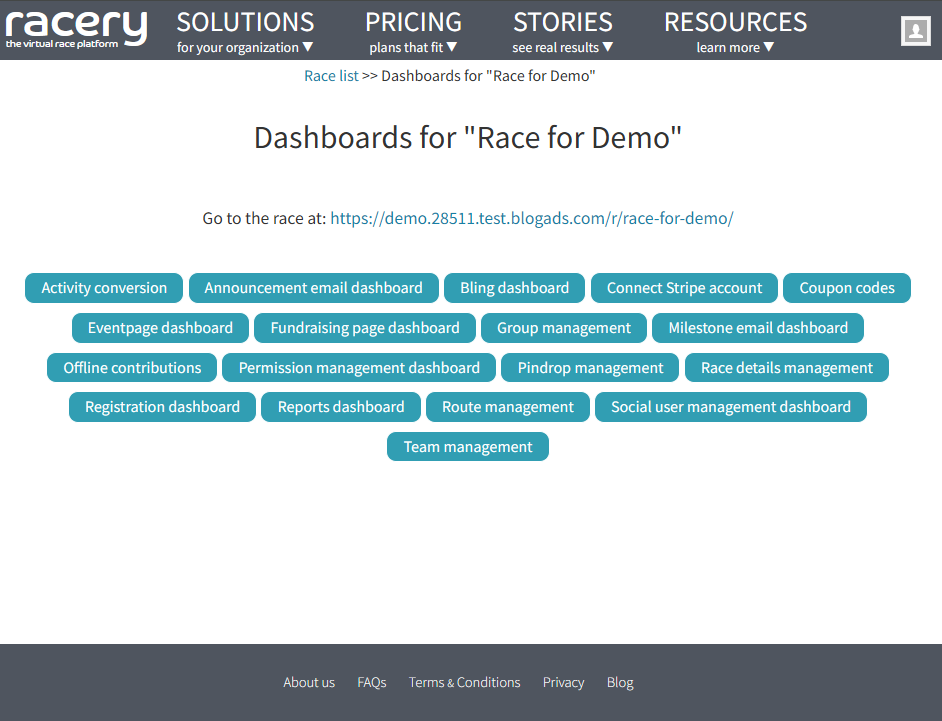
Step 1: Navigate to the Bling Dashboard
From the race dashboard overview, click Bling dashboard.
Step 2: View Existing Awards
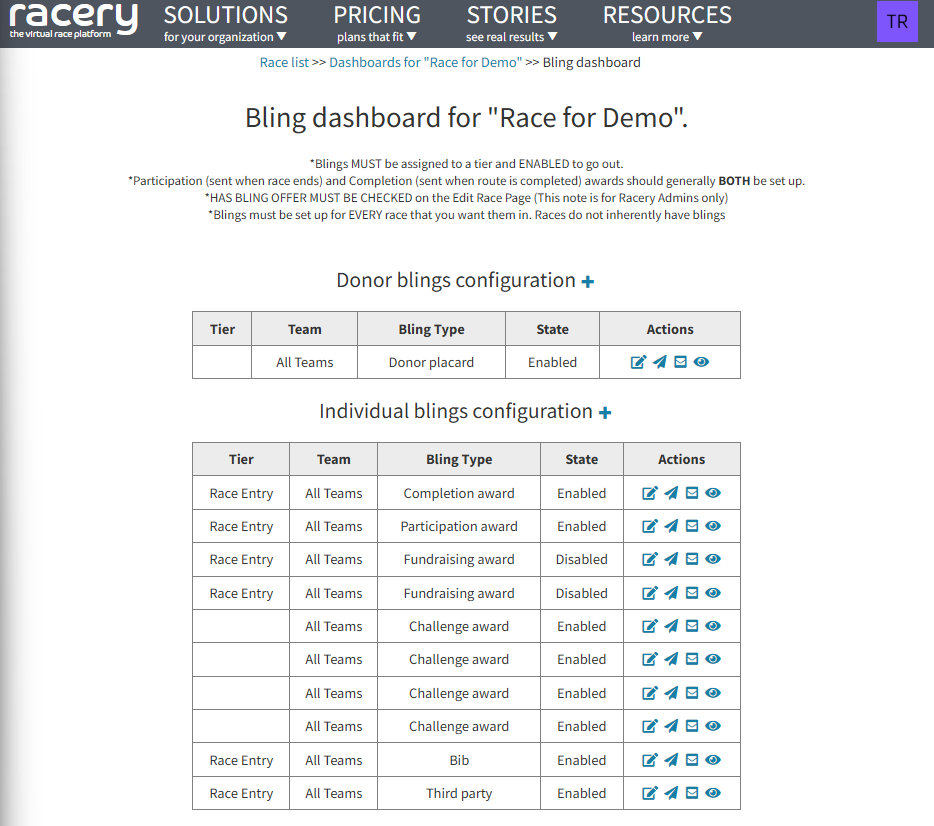
The Bling dashboard shows all configured awards. Challenge awards appear in the Individual blings configuration table with "Challenge award" as the Bling Type.
Step 3: Add a New Challenge Award
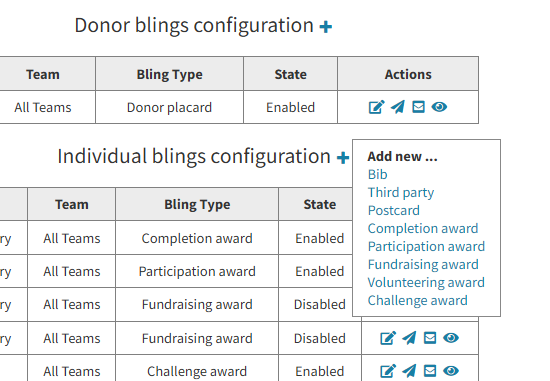
Click the + button next to "Individual blings configuration" and select Challenge award from the dropdown.
Step 4: Configure the Award
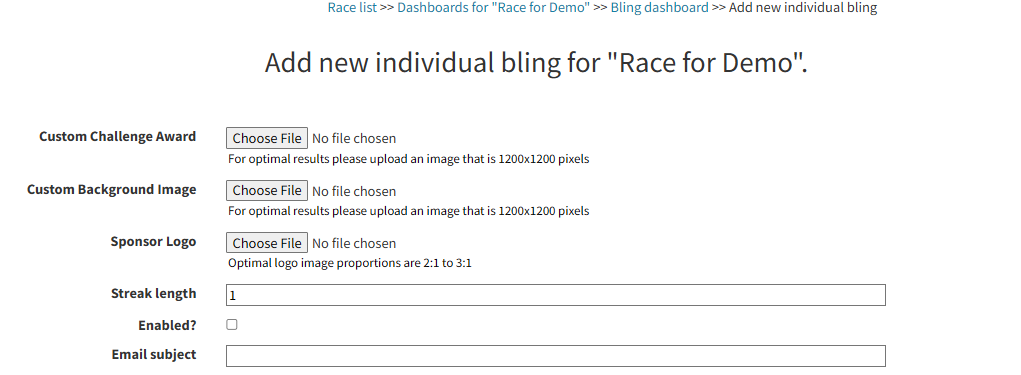
Fill in the challenge award form:
- Custom Challenge Award: Optional custom badge image (1200x1200 px recommended)
- Custom Background Image: Optional background behind the badge (1200x1200 px)
- Sponsor Logo: Optional logo displayed on the badge (2:1 to 3:1 ratio)
- Streak length: Number of consecutive days required (e.g.,
10for a 10-day streak) - Enabled: Check to activate the award
Step 5: Choose the Variant
Select gold, silver, or bronze from the Variant field. This determines which badge template image is used.

Step 6: Configure the Email Notification
Set the Email subject and Email text that racers receive when they earn the badge. Use template variables for personalization:
{{ race.title }}— the race name{{user.username}}— the racer's display name

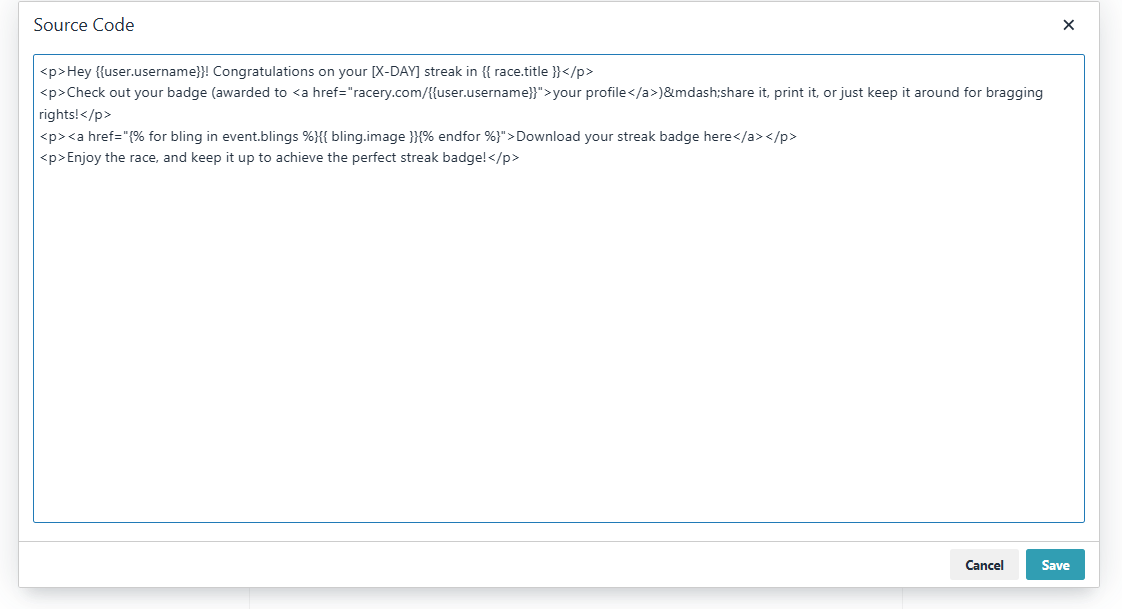
{{ race.title }} template variableClick the <> (source code) button in the email editor to access the HTML source and add badge download links:
Step 7: Preview and Save
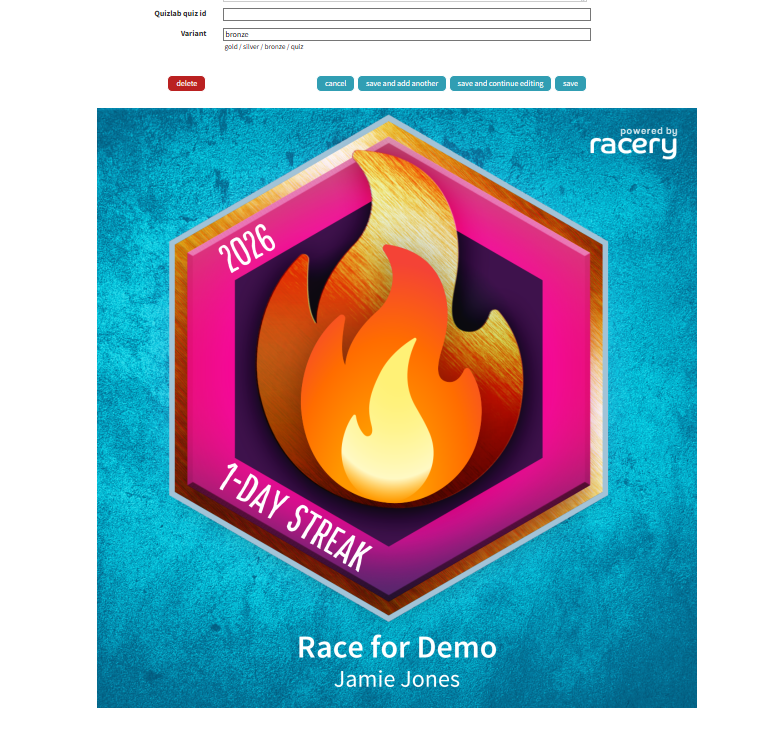
Scroll down to see a live preview of the badge with your configuration. Click Save when ready.
Setting Up a Quiz Award
Quiz awards are triggered when a racer completes a linked Quizlab quiz. The setup is similar to streak awards but with key differences.
Step 1: Create or Edit a Challenge Award
Follow Steps 1–3 from Setting Up a Streak Award to navigate to the challenge award form.
Step 2: Enter the Quizlab Quiz ID
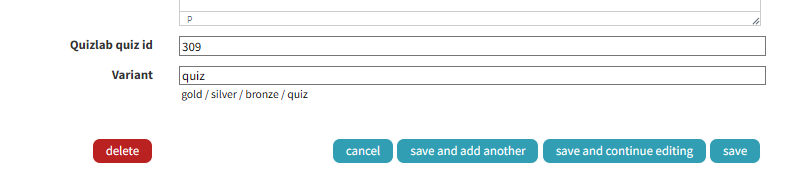
Enter the numeric Quizlab quiz ID in the Quizlab quiz id field. The variant will automatically be set to quiz and the streak length will be cleared.
Step 3: Configure the Quiz Email
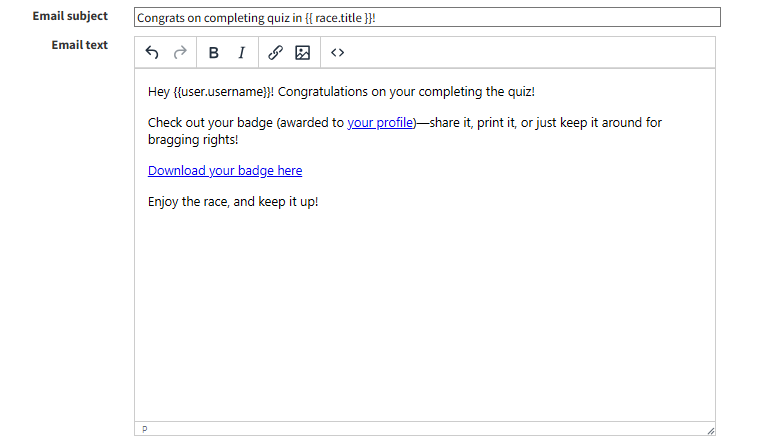
Set the email subject and body for quiz completion notifications. A typical quiz email uses different language than streak emails:
Step 4: Review Full Configuration
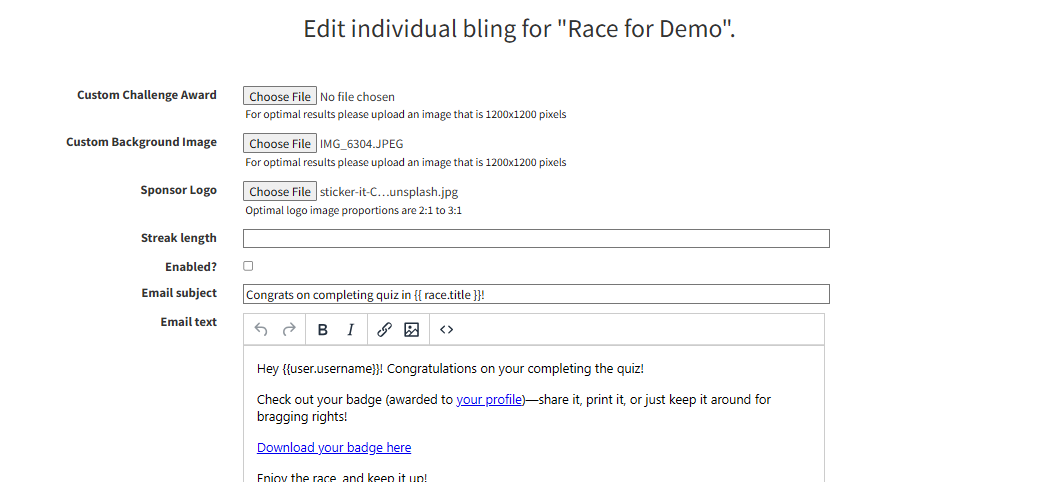
The complete quiz award configuration includes optional custom background and sponsor logo, the quiz ID, email content, and the quiz variant.
Step 5: Preview and Save
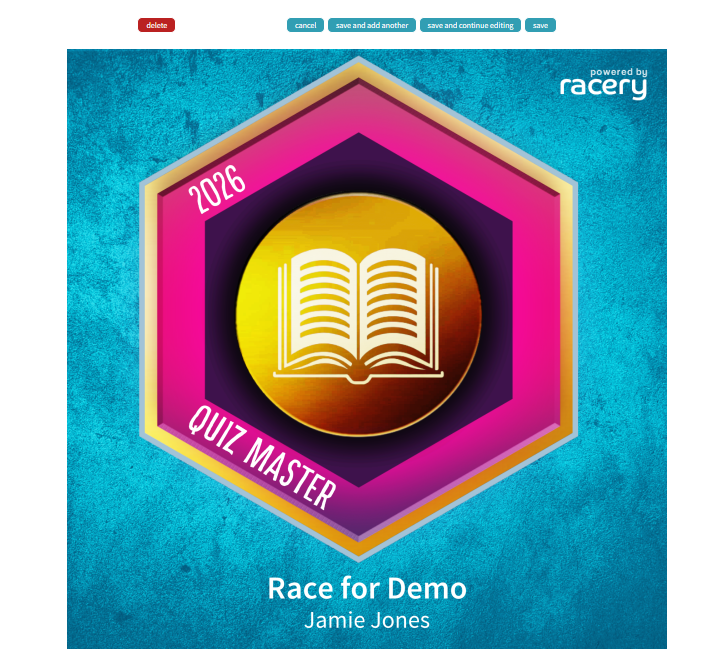
The badge preview for quiz awards shows "QUIZ MASTER" text instead of a streak count.
Mutual Exclusion Rules
Streak and quiz are mutually exclusive per challenge award. The dashboard enforces this automatically:
| Action | Result |
|---|---|
| Setting Quiz ID | Variant forced to quiz, streak length cleared |
| Setting Streak Length | Quiz ID cleared, variant selectable (gold/silver/bronze) |
| Clearing Quiz ID | Quiz removed, variant and streak become editable |
| Clearing Streak Length | Streak removed from config |
Badge Display
Each badge renders with the following elements:
- Streak awards: Shows
{N}-DAY STREAKtext, race title, and racer name - Quiz awards: Shows
QUIZ MASTERtext and race title - Racer name: Displayed below the race title only if the title fits on one line (≤20 characters)
- Race title: Rendered in SourceSansPro-Semibold
- Logos: Sponsor logo and Racery "powered by" logo appear at ~1.5x default size
Triggering & Emails
Each challenge award sends one email per user — whichever condition is met first.
Streak Trigger
Fires when a user's consecutive activity days ≥ the configured streak length. This is checked during activity logging.
Quiz Trigger
Fires when Quizlab posts back a completion callback matching the configured quiz ID.
Deduplication
A BlingEligibility record is created on the first trigger. Any subsequent trigger for the same bling + user combination is silently ignored — no duplicate email is sent.
How it works: The system creates a BlingEligibility entry the first time a racer qualifies. On subsequent checks, if a record already exists, the trigger is skipped entirely.
Email Template Variables
Available variables in email subject and body:
| Variable | Description | Example Output |
|---|---|---|
{{ race.title }} |
Race name | Race for Demo |
{{user.username}} |
Racer's display name | Jamie Jones |
{{ bling.image }} |
Badge image URL (use inside email body loop) | /media/blings/challenge-xxx.png |
Troubleshooting
Badge shows "0-DAY STREAK" over quiz text
The variant is not set to quiz. Re-save the award with the quiz ID entered — this will auto-correct the variant to quiz.
Streak length won't save
If the Quiz ID field is populated, clear it first. Streak length only saves when the Quiz ID is empty. See Mutual Exclusion Rules.
Image doesn't load
Check that the template image exists in static assets for the selected variant. The expected filenames are:
Racery-ChallengeAward-gold.pngRacery-ChallengeAward-silver.pngRacery-ChallengeAward-bronze.pngRacery-ChallengeAward-quiz.png
Race title font not rendering
Use SourceSansPro-Semibold. The Bold variant is not available in the badge rendering pipeline.
Contact support if you have questions.