

Quizzes / Quizlab Integration
Overview
Racery integrates with Quizlab.ai to offer AI-generated quizzes as part of virtual races. Admins provide article URLs and Quizlab’s AI generates multiple-choice questions automatically.
Quizzes can be linked to races for participant engagement and optionally connected to Challenge Awards so racers earn badges upon completion.
How Quizzes Appear on the Race Page
When a quiz is linked to a race, it renders automatically in the About section of the race page. Key behaviors:
- Logged-in users only: The quiz is invisible to visitors who are not logged in. When the quiz is unpublished or not live, nothing shows on the race page.
- User tracking: The quiz URL contains a unique identifier for each logged-in racer, so returning to the quiz shows the same state (or results if already completed).
- Engagement impact: Placing the quiz in the About section rather than sending it only via email dramatically increases participation.
Multiple Quizzes
Different quiz IDs can be set in succession for different race days or weeks. Update the quiz ID in the race configuration to rotate to a new quiz — racers will see the current quiz when they visit the About section.
Logging into Quizlab
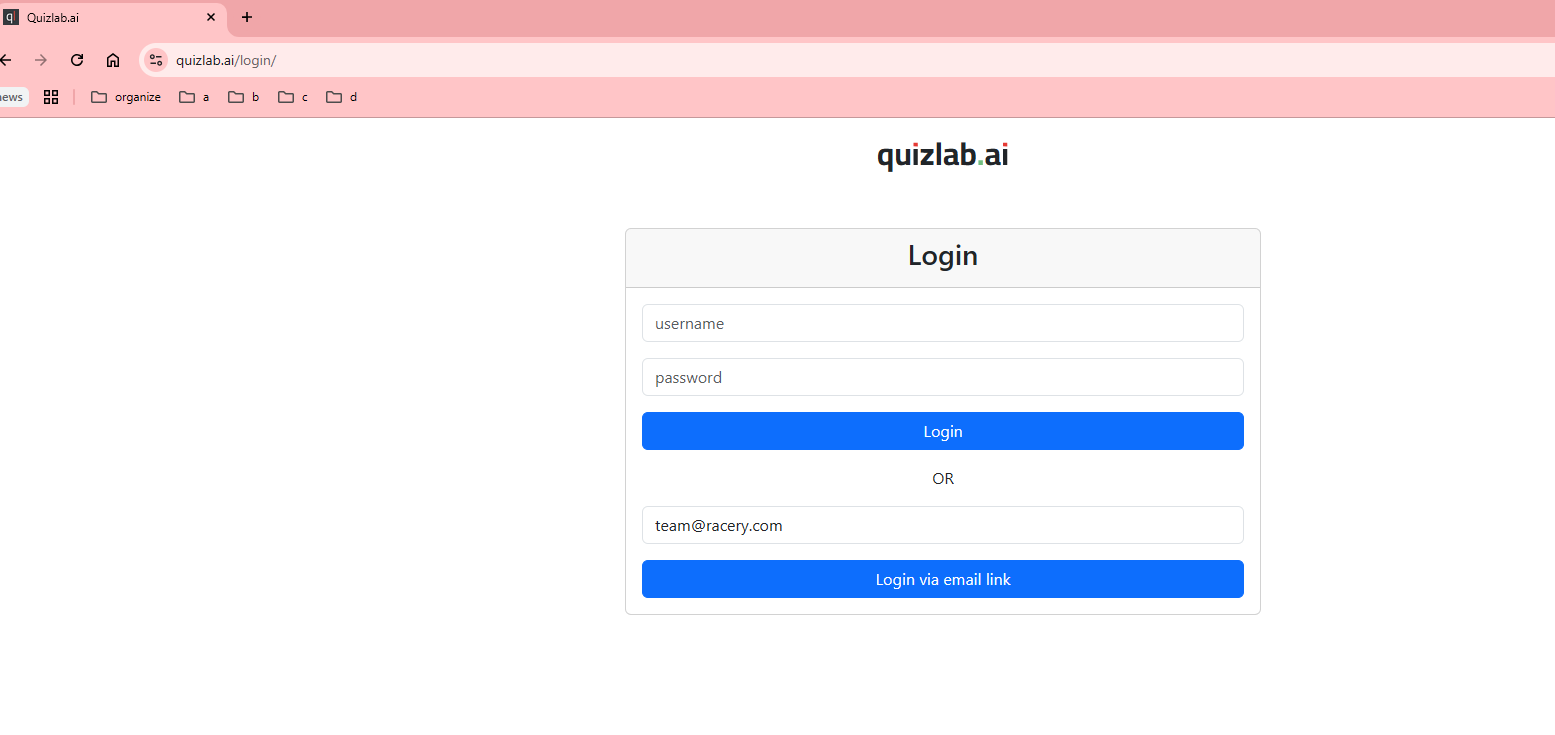
Navigate to quizlab.ai/login/. Two login methods are available:
- Username & password: Enter your credentials and click Login
- Email magic link: Enter your email address and click Login via email link
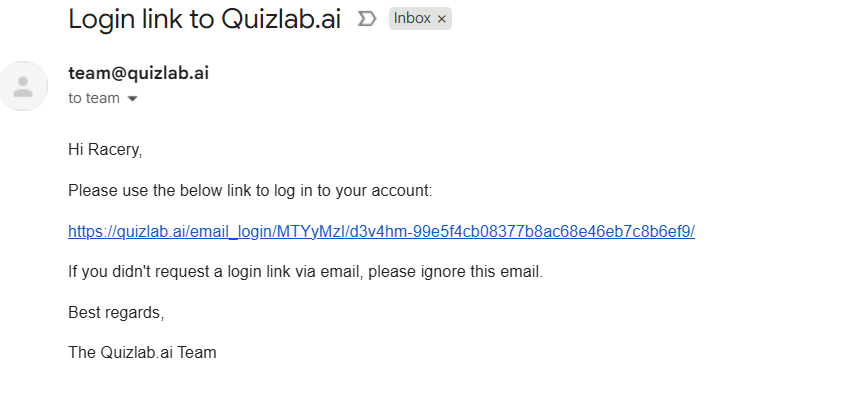
If you choose the email link, you’ll receive an email from team@quizlab.ai with a one-time login URL.
Creating a Quiz
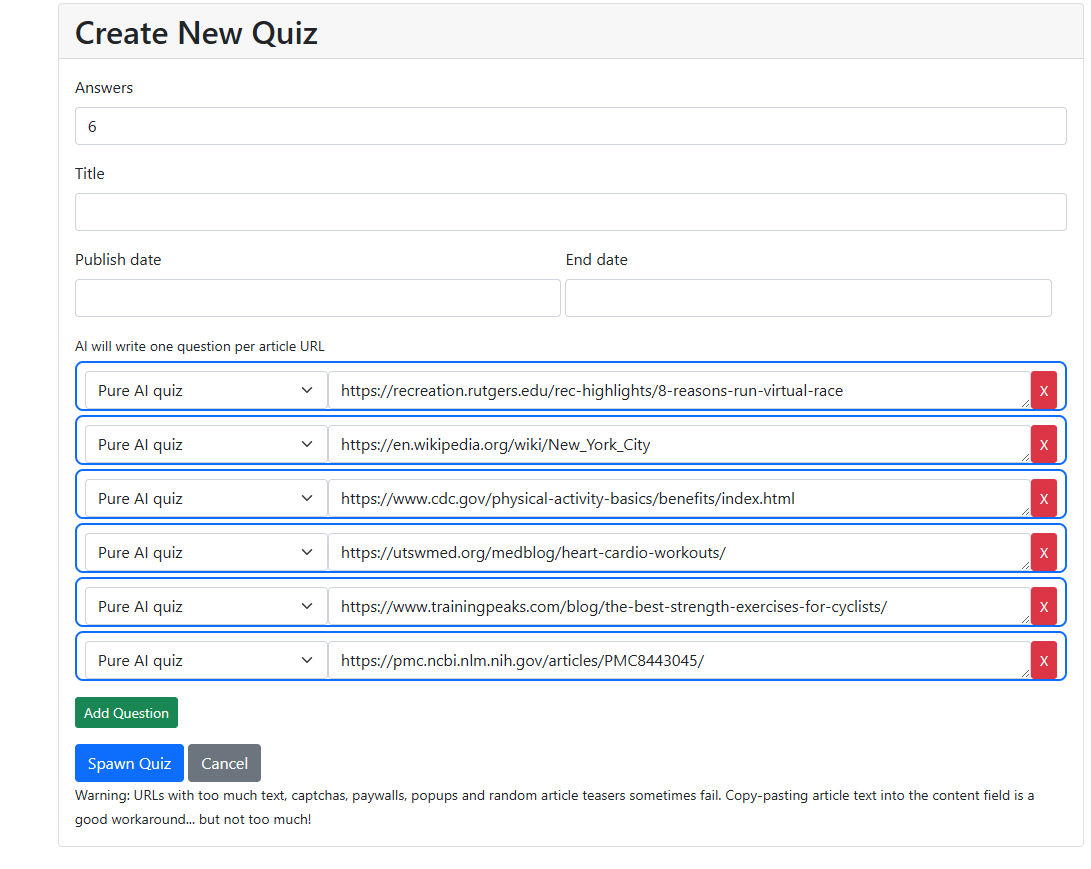
From the Quizlab dashboard, click Create New Quiz. Fill in the form:
| Field | Description |
|---|---|
| Answers | Number of answer choices per question (e.g., 6) |
| Title | Display name for the quiz |
| Publish date | When the quiz becomes available |
| End date | When the quiz closes |
Adding Questions
Each question row has a type dropdown (set to "Pure AI quiz") and an article URL. Quizlab’s AI reads each URL and generates one multiple-choice question from the article content.
Click Add Question to add more rows. When ready, click Spawn Quiz to generate all questions.
Setting Dates
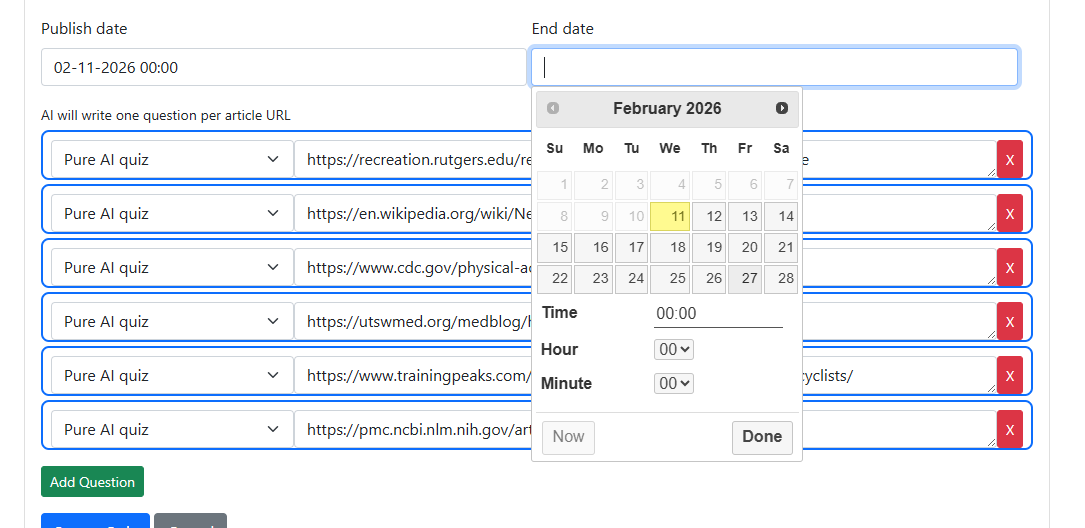
Click the Publish date or End date field to open a calendar picker with time selection.
Publishing & Managing
After spawning, the quiz appears in your dashboard as Draft (orange badge, toggle off).

Toggle the status switch to Published (green badge) to make the quiz live.

Dashboard Columns
The quiz dashboard tracks:
- Title, Status, Start, End
- Players — number of people who started the quiz
- Completions — percentage who finished all questions
- Elapsed time, Shares
Action Buttons

| Button | What It Does |
|---|---|
| Embed | Get embed code for websites |
| Text | View quiz questions as plain text |
| URL | Get the shareable quiz link |
| Edit | Modify questions, answers, or settings |
| Graph | View response analytics |
| Q1 | Jump to first question preview |
| Breakout | View per-question breakdown |
| Archive | Archive the quiz |
Sharing a Quiz
Click the URL button to open a modal with the quiz link. The URL uses the Racery-branded subdomain: racery.quizlab.ai/quiz/{id}/.
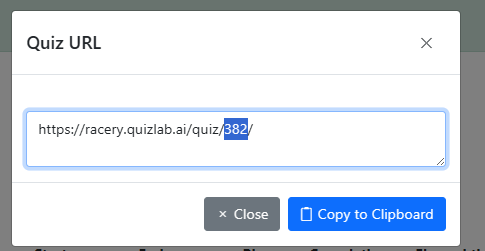
Tip: Use the Embed button to get an embed code if you want to place the quiz directly inside a web page or landing page.
The Racer Experience
When a racer opens the quiz URL, they see a Racery-branded quiz page. Questions are displayed one at a time with multiple-choice answers.
Taking the Quiz
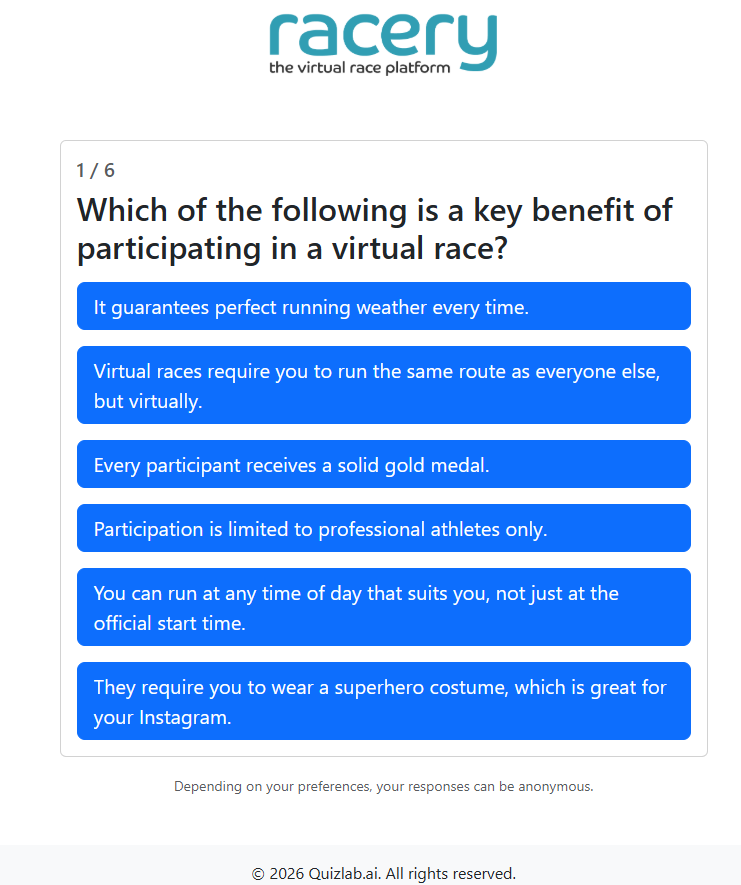
Answer Feedback
After each answer, the racer sees whether they were correct, a percentage breakdown of how others answered, an explanation from the source article, and a Learn More link back to the original content.
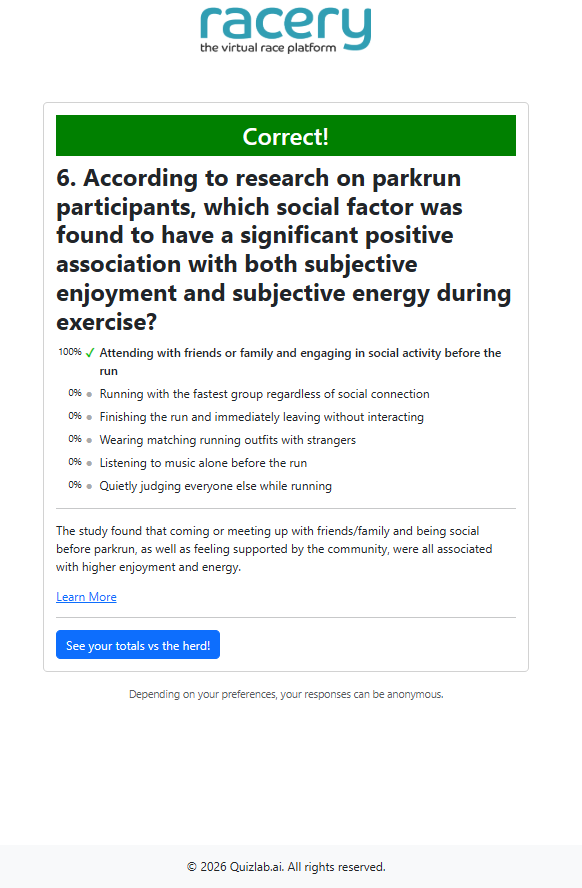
Final Results
After the last question, the racer sees their total score, a histogram showing how they compare to other quiz takers, and a Grab image button for sharing their results.
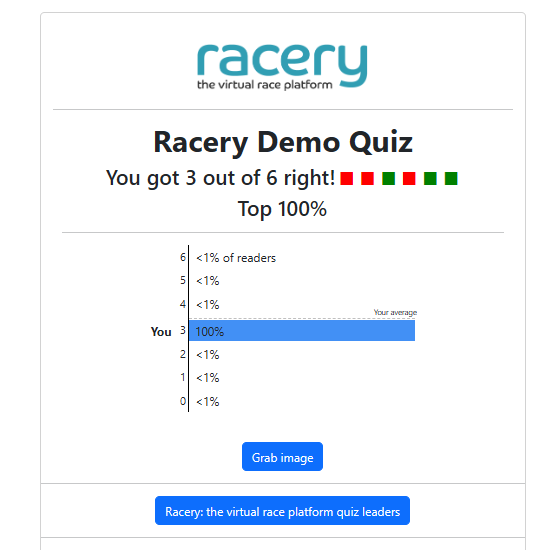
Quiz Badge Card
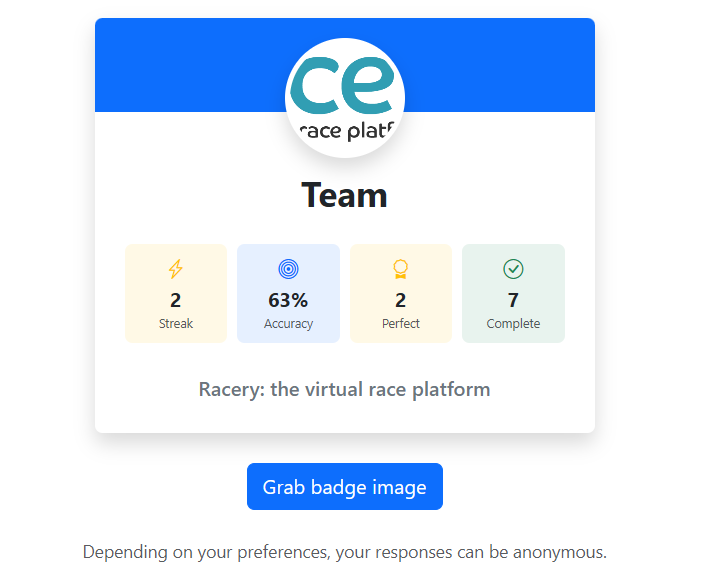
Racers can also view a personal badge card showing their cumulative quiz stats: Streak (consecutive quizzes), Accuracy, Perfect scores, and total Complete count.
Linking to Challenge Awards
To award badges when racers complete the quiz, connect the same quiz ID to a Challenge Award. In the Challenge Award (Bling) admin:
- Set the Quizlab quiz id field to the quiz number (e.g., 382)
- The Variant will automatically be set to
quiz - Configure the award email and save

For full details on configuring Challenge Awards, including email templates, badge display, and troubleshooting, see Challenge Awards.
Troubleshooting
Quiz won't generate from a URL
The source URL may have a captcha, paywall, or popup blocking access. Try copy-pasting the article text directly into the content field instead of using the URL.
Quiz shows as Draft after toggling
Refresh the page. The status toggle may have a brief display delay before reflecting the Published state.
Racer completed quiz but didn't receive an award
Verify all of the following:
- The quiz ID in the Challenge Award config matches the Quizlab quiz ID
- The Challenge Award is Enabled (checkbox checked)
- The racer actually completed the quiz (check the Completions column in Quizlab)
Quiz URL doesn't load for racers
Confirm the quiz is Published (not Draft) and the current date falls within the Publish date / End date range.
Next Steps
Challenge Awards
Configure streak and quiz badges, email notifications, and badge display.
Contact support if you have questions.